Blog Posts — Content Reference
CMS Path: Blog Posts
Folder: content/posts/
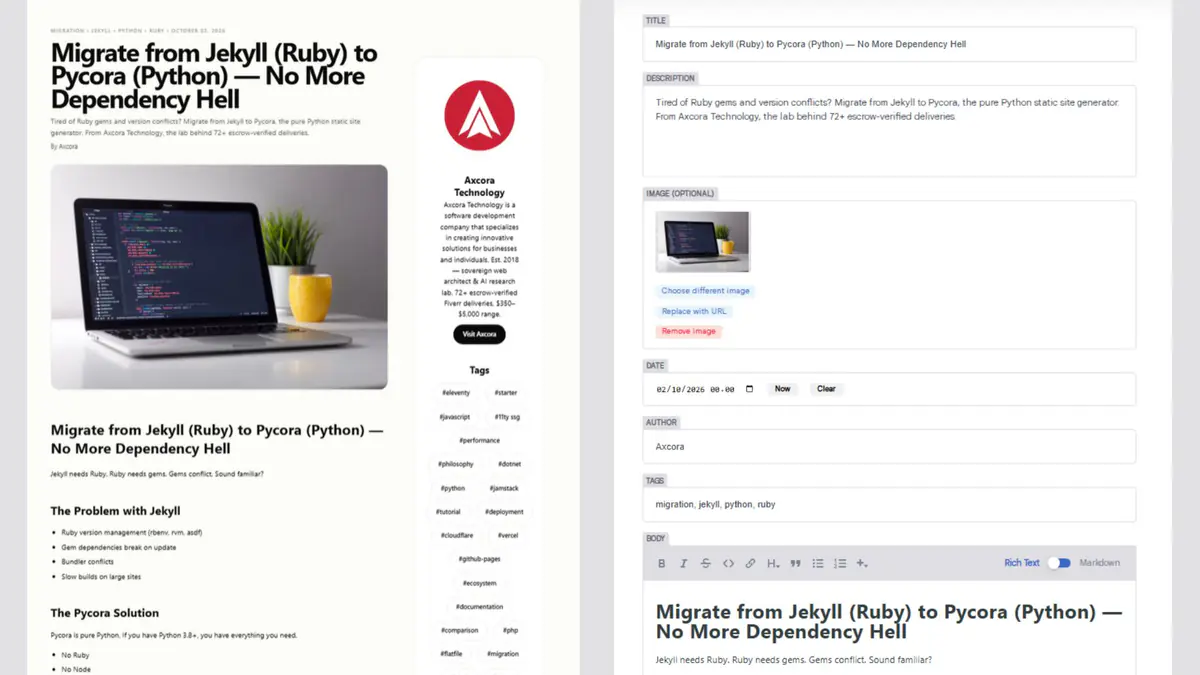
Each blog post is an individual Markdown file in content/posts/. The Journal Page lists them all.
What Is a Blog Post?
A blog post is a single article — a tutorial, an update, a case study, an essay.
Each post has:
- Metadata (title, date, author, tags)
- A featured image
- A full body (Markdown)
Post Fields
| Field | File Key | What It Controls |
|---|---|---|
| Layout | layout | Template used (do not change) |
| Title | title | Post title |
| Description | description | Short summary for listings and SEO |
| Image | image | Featured image (optional) |
| Date | date | Publish date (used for sorting) |
| Author | author | Author name |
| Tags | tags | List of tags |
| Body | body | Full article content in Markdown |
Field Details
Title
The post title. Keep it clear and specific.
Description
A one- or two-sentence summary. Used in:
- The Journal listing
- Meta description for SEO
- Social shares
Image
The featured image for the post. Optional, but recommended.
- Format: AVIF or WebP
- Size: 1200×630 or 1600×900
- File size: Under 200 KB
Date
The publish date. Used for sorting. Format: YYYY-MM-DD.
Author
The author's name. Default: Axcora.
Tags
A list of tags. Used for:
- Related posts
- Tag pages (auto-generated)
- Filtering
Body
The full article in Markdown. This is where the content lives.
How to Create a New Post
-
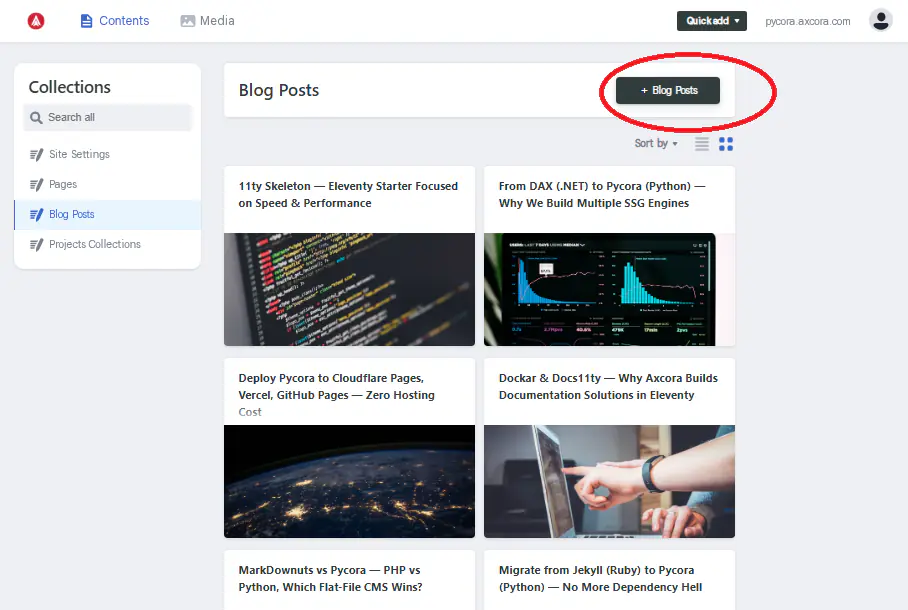
Open the CMS at
/admin/ -
Click Blog Posts in the sidebar
-
Click New Blog Posts at the top
-
Fill in all fields:
- Title
- Description
- Image
- Date
- Author
- Tags
- Body
-
Click Save
The post is saved as a Markdown file in content/posts/. It appears in the Journal listing after the next build.
How to Edit a Post
- Click Blog Posts
- Click the post title in the list
- Edit any field
- Click Save
How to Delete a Post
- Open the post
- Click the three-dot menu at the top right
- Click Delete entry
- Confirm
File Naming
Decap CMS uses the Title field to generate the file name (slug). For example:
| Title | File Name |
|---|---|
| "Why Python Beats Node for Static Sites" | why-python-beats-node-for-static-sites.md |
| "Migrate from Jekyll in 10 Minutes" | migrate-from-jekyll-in-10-minutes.md |
You can override the slug if needed by editing the file name manually in Git.
Recommended Body Structure
A strong blog post usually follows this structure:
- Hook — first sentence grabs attention
- Problem — what the reader is struggling with
- Solution — your answer, with examples
- Steps — numbered or bulleted
- Conclusion — recap and call to action
Use headings (##) to break it into scannable sections.
Best Practices
- Write a strong first sentence — most readers decide in 5 seconds
- Use descriptive headings — not "Introduction", but "Why Python Beats Node"
- Add code samples — for technical posts
- Add images — visual breaks improve readability
- Keep paragraphs short — 3–4 lines maximum
- End with a call to action — link to Contact or Projects
- Use 3–6 tags — enough for discovery, not too many
Tags and Related Posts
Tags do two things:
- Create tag pages — e.g.,
/tags/python/ - Power related posts — posts with shared tags appear as "Related Posts"
Use consistent tags. Examples:
pythonjamstacktutorialmigrationcomparisoncase-study
Troubleshooting
Post does not appear in the Journal
- Check that the file exists in
content/posts/ - Confirm the frontmatter is valid YAML
- Check that the
datefield is filled in - Rebuild the site
Image does not display
- Confirm the image path starts with
/img/ - Check that the file exists in
static/img/ - Verify the image widget saved correctly
Tags do not create tag pages
- Confirm
tagshas at least one item - Check that the tag pages are generated in
output/tags/ - Rebuild the site
Body content does not appear
- Check the Body field is not empty
- Confirm the Markdown syntax is valid
- Rebuild the site
Post appears out of order
- Check the
datefield — must be inYYYY-MM-DDformat - Check the Journal Page sort settings (
sort_by: date,sort_order: desc)
Slug is wrong
Decap CMS generates the slug from the Title. To customize:
- Rename the file manually in Git
- Or change the Title to influence the slug
Related
What's Next?
Now let's look at Media Uploads.