Home Page — Content Reference
CMS Path: Pages → Home Page
File: content/index.md
The Home Page is the most configurable page in Pycora Pro. It contains every major section: hero, trusted, intro grids, stats, journal, projects, and testimonial.
Page Metadata
| Field | File Key | What It Controls |
|---|---|---|
| Layout | layout | Template used (do not change) |
| Title | title | Browser tab and SEO title |
| Description | description | Meta description |
| Image | image | Social share image |
| Keywords | keywords | SEO keywords |
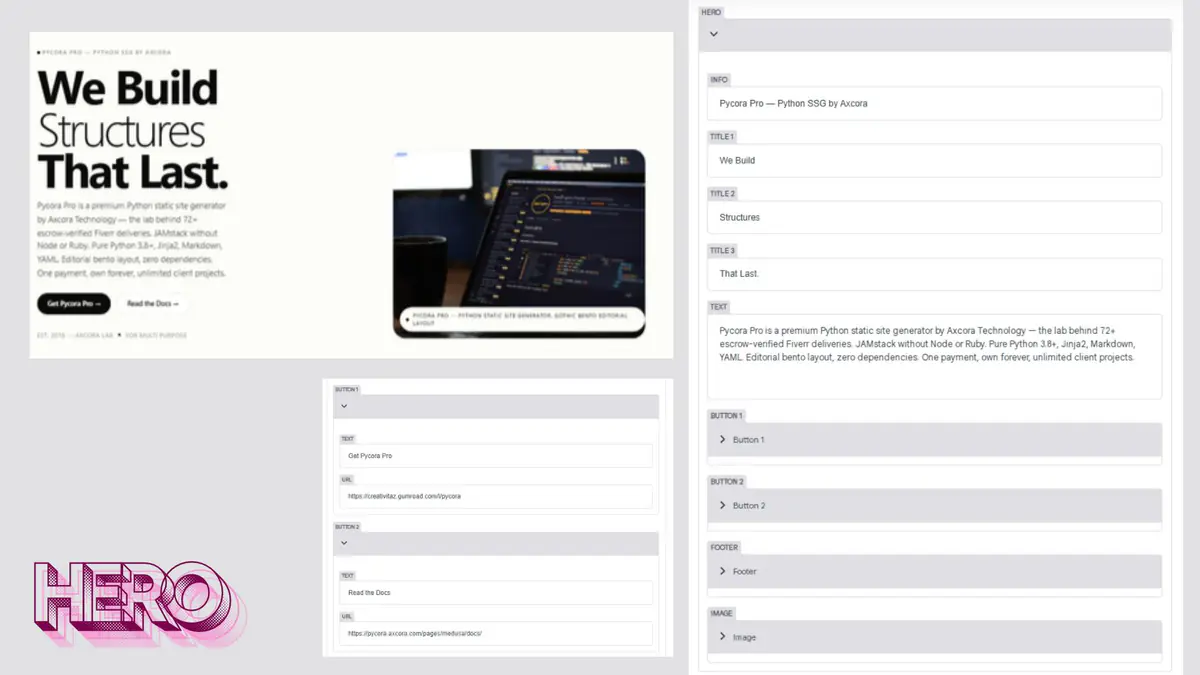
Hero
| Field | File Key | What It Controls |
|---|---|---|
| Info | hero.info | Small label above headline |
| Title 1 | hero.title1 | First line of headline |
| Title 2 | hero.title2 | Second line |
| Title 3 | hero.title3 | Third line |
| Text | hero.text | Hero paragraph |
| Button 1 → Text | hero.button1.text | Primary CTA label |
| Button 1 → URL | hero.button1.url | Primary CTA link |
| Button 2 → Text | hero.button2.text | Secondary CTA label |
| Button 2 → URL | hero.button2.url | Secondary CTA link |
| Footer → Est | hero.footer.est | Small text (e.g., "EST. 2026") |
| Footer → Text | hero.footer.text | Small tagline |
| Image → URL | hero.image.url | Hero image |
| Image → Alt | hero.image.alt | Alt text (accessibility) |
Tip: Keep each headline line short (2–4 words). They stack vertically on mobile.
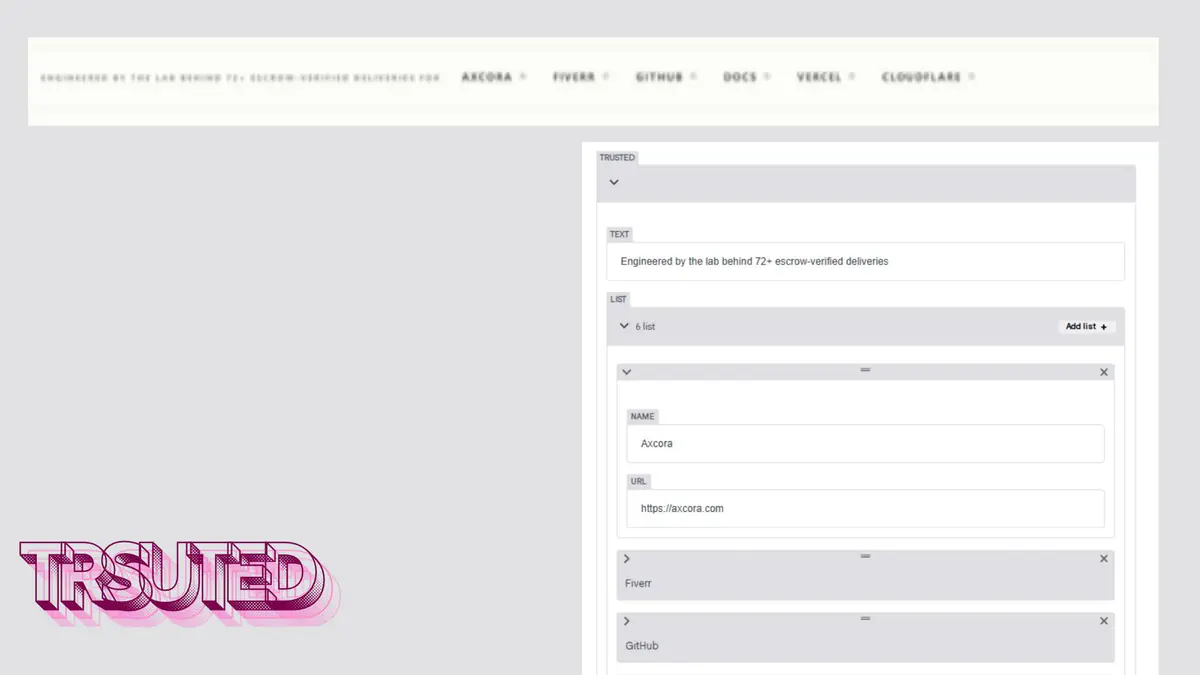
Trusted
| Field | File Key | What It Controls |
|---|---|---|
| Text | trusted.text | Label above the logo list |
| List | trusted.list | Logos/names (each has name + url) |
How to edit logos:
- Expand List
- Edit each item's Name and URL
- Click Add List to add a new logo
- Click Save
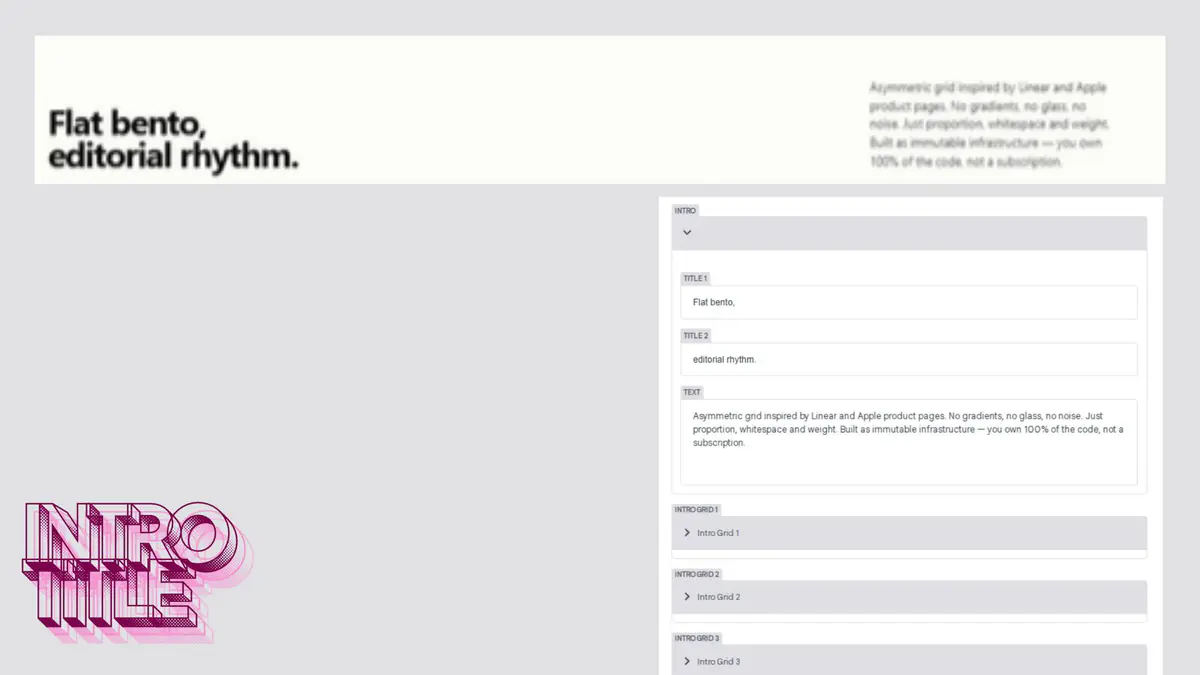
Intro
| Field | File Key | What It Controls |
|---|---|---|
| Title 1 | intro.title1 | First intro line |
| Title 2 | intro.title2 | Second intro line |
| Text | intro.text | Intro paragraph |
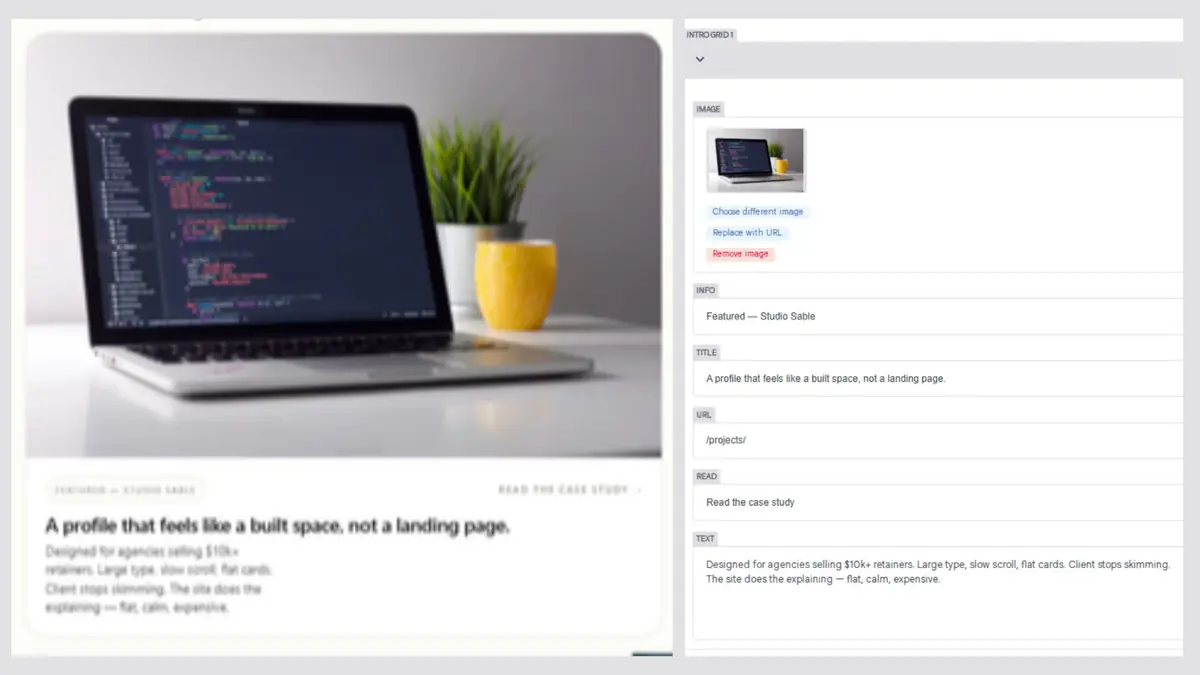
Intro Grid 1
| Field | File Key | What It Controls |
|---|---|---|
| Image | intro_grid1.image | Grid image |
| Info | intro_grid1.info | Small label (e.g., "Featured — Studio Sable") |
| Title | intro_grid1.title | Grid title |
| URL | intro_grid1.url | Link target |
| Read | intro_grid1.read | "Read more" text |
| Text | intro_grid1.text | Grid paragraph |
Intro Grid 2
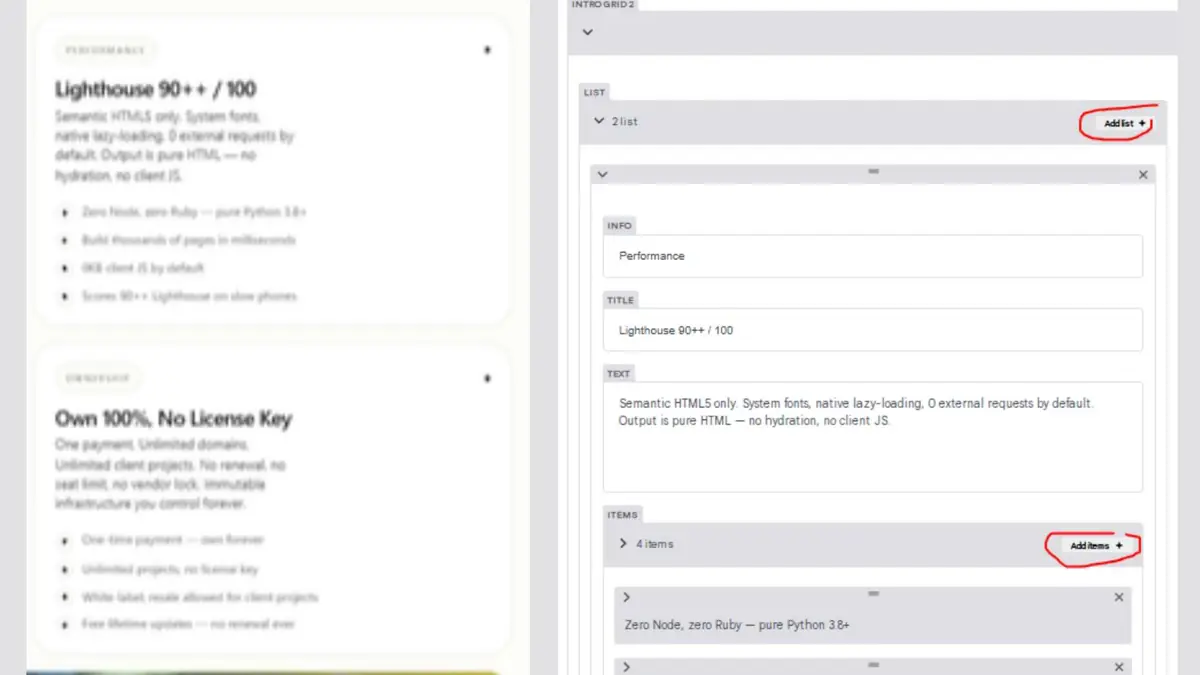
Intro Grid 2 is a list of items, not a single block.
| Field | File Key | What It Controls |
|---|---|---|
| List → Info | intro_grid2.list[].info | Small label |
| List → Title | intro_grid2.list[].title | Item title |
| List → Text | intro_grid2.list[].text | Item paragraph |
| List → Items | intro_grid2.list[].item | Nested feature list (each has text) |
How to add a new item:
- Expand Intro Grid 2 → List
- Click Add List
- Fill in Info, Title, Text
- Expand Items and add feature lines
- Click Save
Intro Grid 3
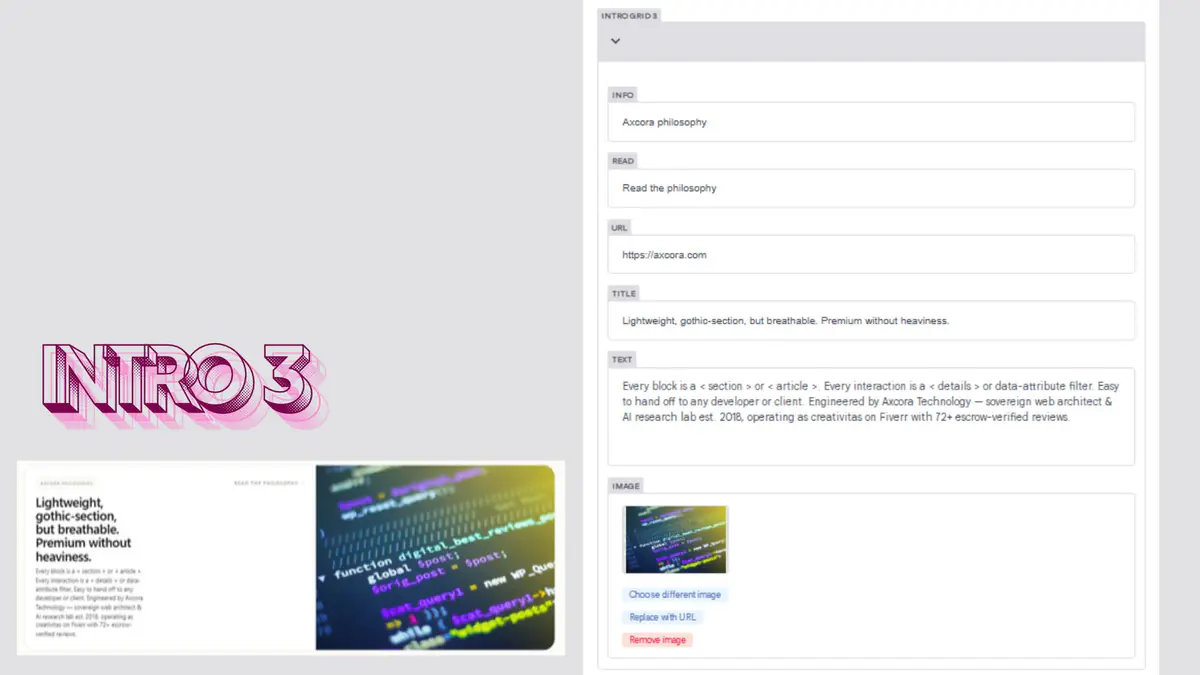
| Field | File Key | What It Controls |
|---|---|---|
| Info | intro_grid3.info | Small label |
| Read | intro_grid3.read | "Read more" text |
| URL | intro_grid3.url | Link target |
| Title | intro_grid3.title | Grid title |
| Text | intro_grid3.text | Grid paragraph |
| Image | intro_grid3.image | Grid image |
Stats
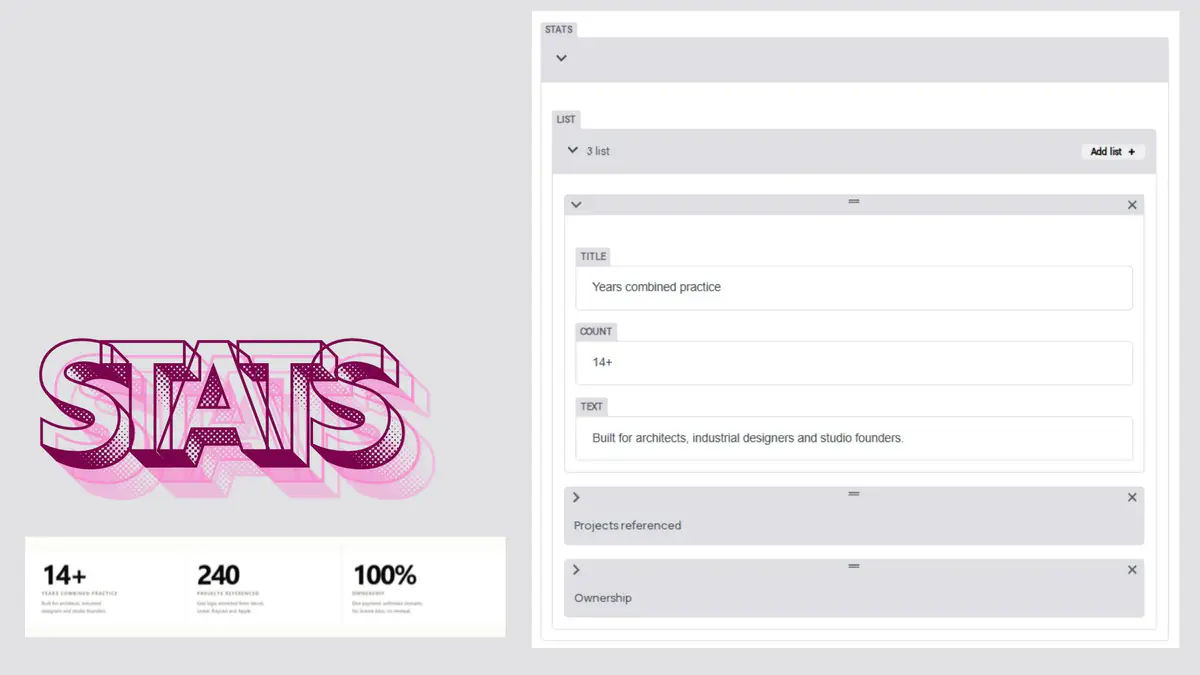
| Field | File Key | What It Controls |
|---|---|---|
| List → Title | stats.list[].title | Stat label |
| List → Count | stats.list[].count | Big number (e.g., "14+") |
| List → Text | stats.list[].text | Short description |
How to add a stat:
- Expand Stats → List
- Click Add List
- Fill in Title, Count, Text
- Click Save
Journal
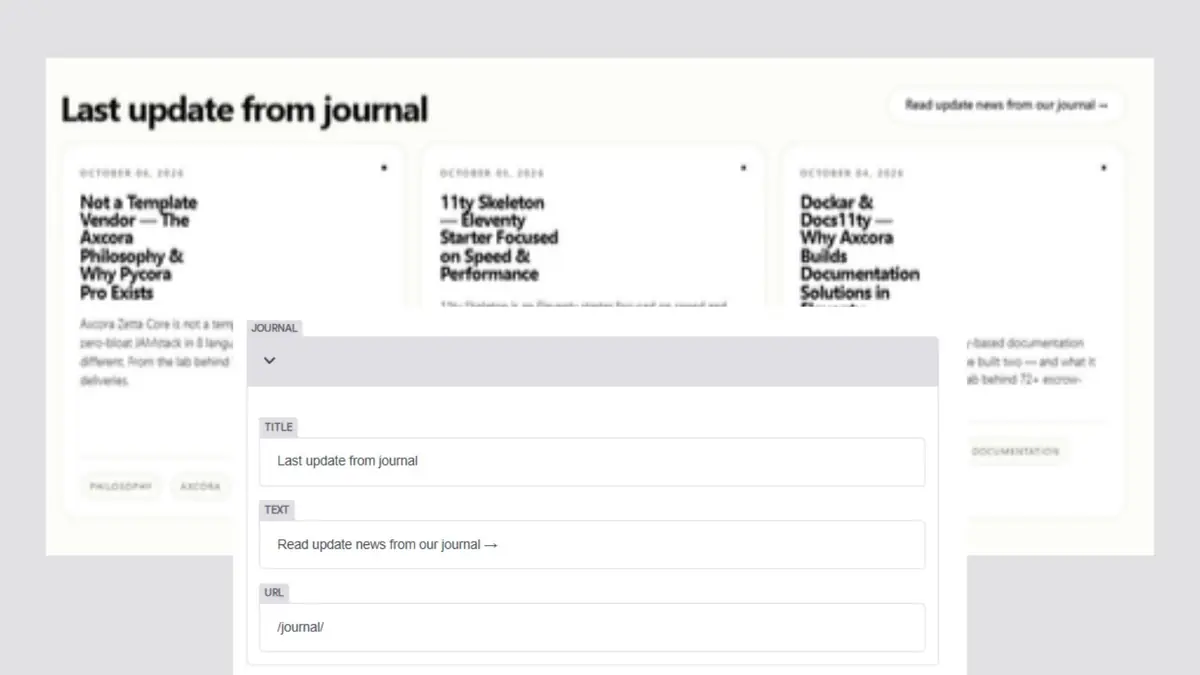
| Field | File Key | What It Controls |
|---|---|---|
| Title | journal.title | Journal section title |
| Text | journal.text | Journal section text |
| URL | journal.url | Link to the journal page |
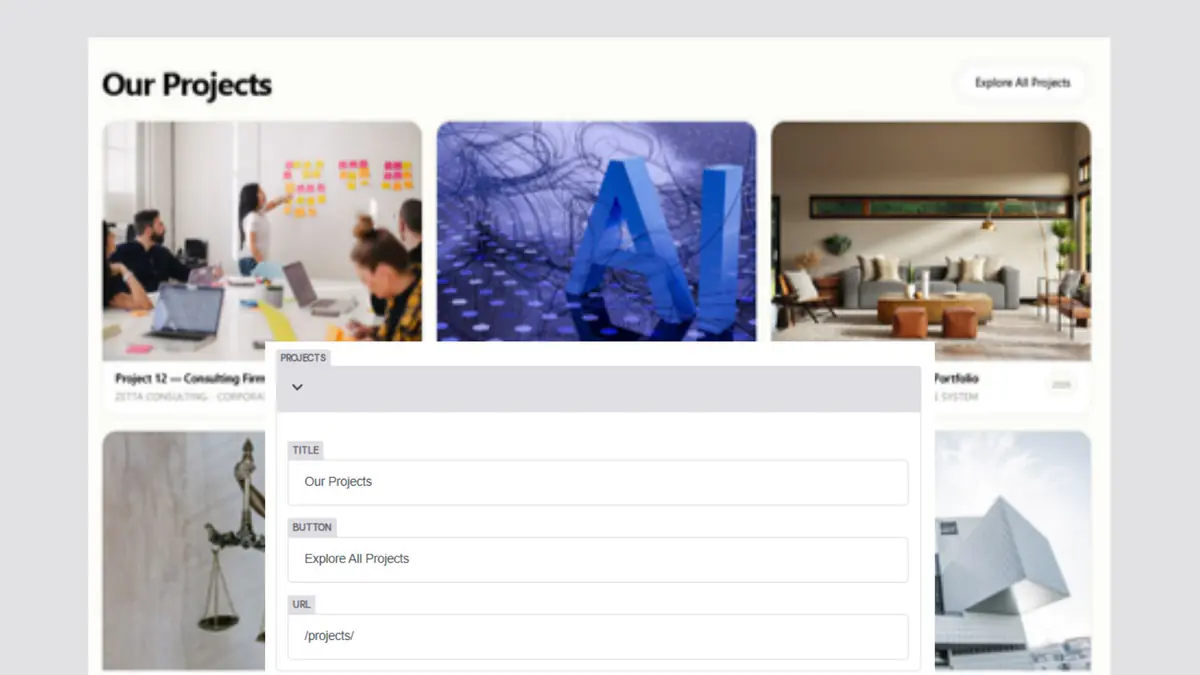
Projects
| Field | File Key | What It Controls |
|---|---|---|
| Title | projects.title | Projects section title |
| Button | projects.button | Button label |
| URL | projects.url | Link to the projects page |
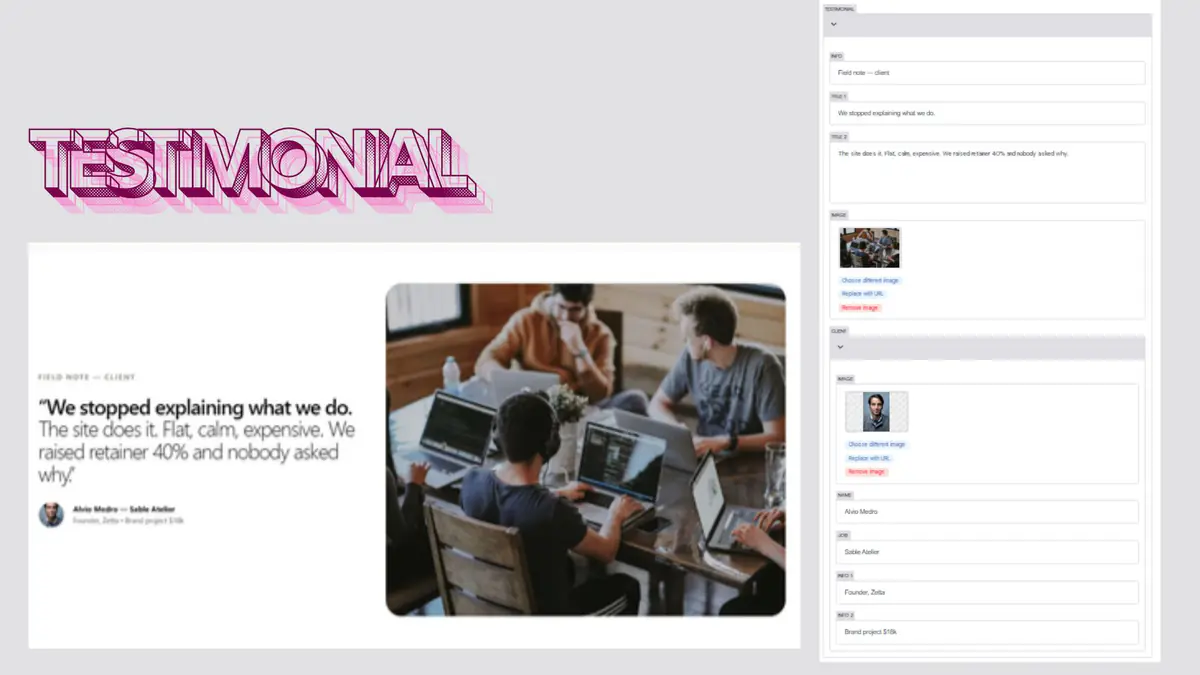
Testimonial
| Field | File Key | What It Controls |
|---|---|---|
| Info | testimonial.info | Small label (e.g., "Field note — client") |
| Title 1 | testimonial.title1 | First testimonial line |
| Title 2 | testimonial.title2 | Testimonial quote |
| Image | testimonial.image | Background image |
| Client → Image | testimonial.client.image | Client photo |
| Client → Name | testimonial.client.name | Client name |
| Client → Job | testimonial.client.job | Client job title |
| Client → Info 1 | testimonial.client.info1 | First detail (e.g., "Founder, Zetta") |
| Client → Info 2 | testimonial.client.info2 | Second detail (e.g., "Brand project $18k") |
How to Edit the Home Page
- Open the CMS at
/admin/ - Click Pages → Home Page
- Expand the section you want to edit
- Update the fields
- Click Save
Best Practices
- Hero headline — keep it short, 3 lines max
- Hero image — use AVIF or WebP, under 200 KB
- Trusted logos — use real names, not placeholders
- Stats — use real numbers when possible
- Testimonial — always get permission before publishing client details
Troubleshooting
Hero image does not appear
- Check that the file exists in
static/img/ - Confirm the URL starts with
/img/ - Refresh with
Ctrl + Shift + R
Intro Grid 2 is empty
Open intro_grid2.list — at least one item is required for the grid to render.
Stats numbers do not display
Check that each stat has Count filled in (e.g., 14+).
Testimonial quote overflows
Shorten testimonial.title2 — the layout is designed for 1–2 lines.
Journal or Projects link broken
Confirm the URL in journal.url or projects.url matches a real page.
Related
What's Next?
Now let's look at the About Page.