Local — Media Uploads
Pycora Pro stores all media — images, logos, photos — in a single folder:
static/img/
When you upload through Decap CMS, the file lands in static/img/ and is referenced in your content as /img/filename.ext.
Before You Begin
Make sure:
- Terminal 1 is running:
npx decap-server - Terminal 2 is running:
python dev.py - You are logged into
http://localhost:8000/admin/
How Media Upload Works
Pycora Pro uses Decap CMS's image widget. Any field marked widget: image in config.yml opens a media picker.
The media folder is defined in static/admin/config.yml:
media_folder: "static/img"
public_folder: "/img"
media_folder— where files are saved on diskpublic_folder— the URL path used in your content
So when you upload hero.avif, it is saved to static/img/hero.avif and referenced as /img/hero.avif.
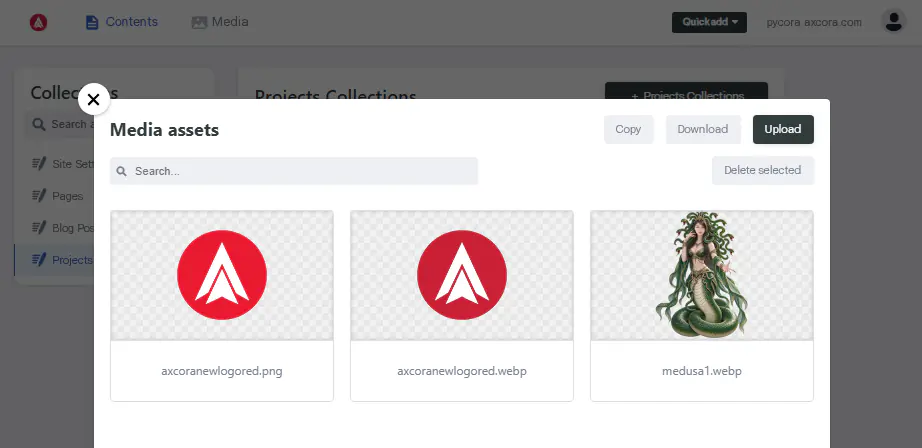
Step 1 — Upload an Image
- Open any page in the CMS that has an image field (e.g., Pages → Home Page → Hero → Image)
- Click the image field
- Click Upload
- Select an image from your computer
- Wait for the upload to finish
- Click Save
The image is now in static/img/, and the field is filled with /img/your-image.ext.
Step 2 — Use an Existing Image
If the image already exists in static/img/:
- Click the image field
- Click Choose an existing image
- Browse the media library
- Select the image
- Click Save
Step 3 — Verify the Upload
Open your file explorer (Windows) or Finder (Mac), and navigate to:
pycora-pro/static/img/
You should see your uploaded file.
Open your browser at http://localhost:8000 — the image appears in its section.
Supported Formats
Pycora Pro works with any image format your browser supports. Recommended formats:
| Format | Best For | Notes |
|---|---|---|
| AVIF | Hero images, featured images | Smallest file size |
| WebP | General use | Wide browser support |
| JPG | Photos | Universal |
| PNG | Logos, icons with transparency | Larger files |
| SVG | Icons, logos | Scalable, tiny |
Tip: Convert large JPGs and PNGs to WebP or AVIF before uploading. This keeps your site fast and your Lighthouse score high.
Where to Use Images
Every image field in Pycora Pro maps to a specific section:
| Page | Field | Purpose |
|---|---|---|
| Home Page → Hero | hero.image.url | Hero image on the homepage |
| Home Page → Intro Grid 1 | intro_grid1.image | First grid image |
| Home Page → Intro Grid 3 | intro_grid3.image | Third grid image |
| Home Page → Testimonial | testimonial.image | Testimonial background |
| Home Page → Testimonial → Client | testimonial.client.image | Client photo |
| About Page | image | About page image |
| Contact Page | image | Contact page image |
| Blog Posts | image | Featured image per post |
| Projects | image | Featured image per project |
| Site Settings | image, favicon, logo | Global brand assets |
Image Naming Best Practices
Use clean, descriptive filenames:
| Good | Bad |
|---|---|
hero-homepage.avif | IMG_2024_final_v2.jpg |
client-alvio.avif | Untitled-1.png |
logo-dark.svg | logo (1).svg |
Rules:
- All lowercase
- Use hyphens, not spaces
- No special characters
- Keep it short
Replacing an Image
To replace an existing image:
- Open the image field
- Click Upload
- Select the new image
- Save
The old file stays in static/img/ — you can delete it manually if you want. Or keep it for future use.
Deleting an Image
To delete an image:
- Open the media library (click any image field → Choose an existing image)
- Hover over the image you want to delete
- Click the trash icon
- Confirm
Warning: Deleting an image used elsewhere on your site will break those pages. Check first.
Troubleshooting
Image does not appear after upload
- Check that
static/img/contains the file - Check that the field value starts with
/img/ - Refresh with
Ctrl + Shift + R - Check the terminal for build errors
Upload fails with an error
- Check that Terminal 1 (Decap server) is running
- Check that the file is under 10 MB
- Check that
static/img/exists and is writable
Image appears broken on the live site
The image path in your content must match a file inside static/img/. Check for typos in the filename.
Image is too large / slow to load
Convert to WebP or AVIF using a free tool like Squoosh. Aim for under 200 KB per image.
What's Next?
You know how to upload and use media. Let's build your site for the first time.